Starting a company has never been easier – or more competitive. In 2026 the difference between startups that move fast and those that stall often comes down to the stack of tools founders choose early on. The right tools handle the chaos of early days: scattered tasks, tiny teams wearing every hat, limited budgets, and the constant pressure to ship, learn, and grow. Smart picks let founders focus on building something people actually want instead of fighting spreadsheets or endless email threads.
The landscape keeps evolving fast, especially with AI baked into almost everything now. Top tools today combine ease of use, generous free tiers (crucial when runway is tight), and real scalability as the team expands. Whether it’s all-in-one workspaces, visual project trackers, smart communication hubs, or growth-focused marketing suites, the best ones feel like they were built for founders who hate wasting time. Here are the leading categories and standout tools shaping how early-stage companies actually operate right now.

Get AI Perks: Unlock Essential Business Tools for a Fraction of the Price
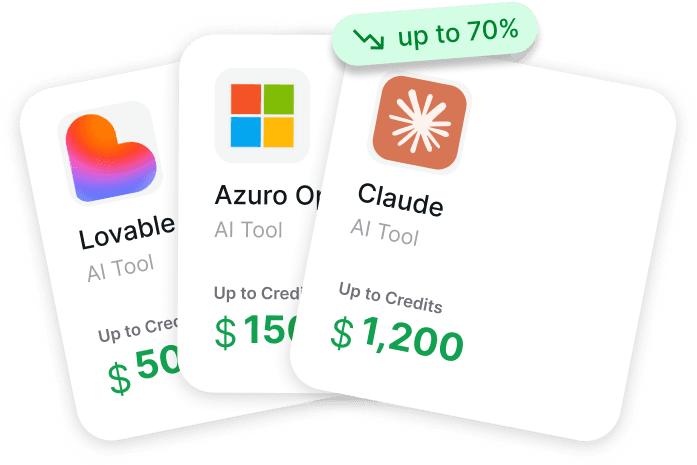
Get AI Perks provides a practical way to manage startup expenses by collecting hundreds of discounts and credits from AI and SaaS providers in one place. Instead of digging through the hidden startup programs of companies like OpenAI, Anthropic, Cursor, and Notion, the platform delivers up-to-date perks through a clean dashboard.
Our catalogue includes an internal Approval Index that shows the real likelihood of qualifying for each deal, so no time is wasted on unrealistic applications. Every offer comes with straightforward, step-by-step activation guides that eliminate the need to decipher complex rules or struggle with forms.
The platform operates on a subscription basis, with fresh offers added every week. For a small fee, startups gain access to credits worth millions in total, which is especially useful when testing different tools during early growth. Ultimately, Get AI Perks offers a simple way to keep software expenses under control while ensuring access to the essential tools a growing product requires.
Essential Business Tools for Startups

1. Notion
Notion serves as a single workspace where knowledge gets captured, answers surface quickly, and projects see some level of automation through AI agents. Users assign tasks to these agents, which handle execution based on shared context and goals. The setup keeps everything in one place instead of jumping between separate apps for notes, databases, or task tracking.
Search works across all content without needing to switch tools, while meeting notes come out structured thanks to AI handling the transcription and summarization. Workflows stay flexible enough for different project sizes, and custom agents are in the pipeline for more tailored automation. It ends up functioning as an everything app for daily work, pulling in calendars, wikis, and basic project elements.
Key Highlights:
- AI agents handle assigned tasks
- Unified search across workspace content
- Automated meeting notes
- Flexible project workflows
- Repetitive task automation
Pros:
- Keeps knowledge and tasks together
- Agents adapt to personal context
- Search feels comprehensive
- Handles varied project types
- Reduces tool switching
- Supports wiki-style organization
Cons:
- Learning curve for full customization
- AI features still evolving
- Can feel overwhelming at first
- Some advanced agents not yet available
Contact Information:
- Website: notion.com
- LinkedIn: linkedin.com/company/notionhq
- Facebook: facebook.com/NotionHQ
- Twitter: x.com/NotionHQ
- Instagram: instagram.com/notionhq
- App Store: apps.apple.com/us/app/notion-notes-tasks-ai/id1232780281
- Google Play: play.google.com/store/apps/details?id=notion.id

2. Slack
Slack acts as a central hub for messaging, collaboration, and pulling in information from other tools. Conversations happen through typed messages or voice, with channels keeping discussions organized by topic or project. External partners join specific conversations without needing full access to internal spaces.
Slackbot sits there as a built-in AI that answers work-related questions by drawing from team knowledge – things like schedules or past decisions. It adjusts to how someone communicates over time. Integrations connect existing apps so actions like feedback loops or ticket creation happen right inside the platform instead of elsewhere.
AI helps by summarizing missed threads, pulling out action items from discussions, or giving suggestions on documents. The whole setup aims to keep context alive across chats and tools without constant copy-paste.
Key Highlights:
- Messaging and voice communication
- Channels for organized discussions
- Slackbot for instant knowledge answers
- App integrations for automation
- AI summaries and action extraction
Pros:
- Conversations stay searchable
- External access works smoothly
- Slackbot learns team patterns
- Integrations cut down manual steps
- AI picks up context from chats
Cons:
- Can turn into message overload
- Search relies on good organization
- External invites need careful setup
- Notifications pile up quickly
Contact Information:
- Website: slack.com
- LinkedIn: linkedin.com/company/tiny-spec-inc
- Facebook: facebook.com/slackhq
- Twitter: x.com/slackhq
- Instagram: instagram.com/slackhq
- App Store: apps.apple.com/us/app/slack/id618783545

3. ClickUp
ClickUp combines tasks, documents, chat, and various views into one workspace so different pieces of work live together. Users create tasks with dependencies, priorities, checklists, and custom fields, then track progress through kanban boards, Gantt charts, roadmaps, or dashboards. AI agents take on delegated work like updating status, sending emails, or completing routine steps.
Docs handle wikis, mind maps, and templates while whiteboards support visual planning sessions. Automations run reminders, form processing, and API triggers without code. Time tracking shows up through timesheets and estimates, keeping everything connected under single sign-on if needed.
The structure tries to reduce context loss by keeping humans, agents, and data in the same spot instead of scattered apps.
Key Highlights:
- Tasks with dependencies and custom fields
- Multiple views like kanban and Gantt
- AI agents for task delegation
- Docs and whiteboards
- Built-in automations
- Time tracking and estimates
Pros:
- Everything stays linked
- Views adapt to different needs
- Agents handle repetitive bits
- Chat integrates with tasks
- Custom fields give flexibility
Cons:
- Interface packs in a lot
- Setup takes time initially
- Some views feel cluttered
- Automations need testing
Contact Information:
- Website: clickup.com
- LinkedIn: linkedin.com/company/clickup-app
- Facebook: facebook.com/clickupprojectmanagement
- Twitter: x.com/clickup
- Instagram: instagram.com/clickup
- App Store: apps.apple.com/us/app/clickup-tasks-chat-docs-ai/id1535098836
- Google Play: play.google.com/store/apps/details?id=co.mangotechnologies.clickup

4. Trello
Trello organizes work through visual boards where tasks move as cards between lists – from incoming ideas to finished items. An Inbox catches to-dos from anywhere so nothing gets lost when thoughts hit. The Planner lets users drag tasks straight onto a calendar view to block time.
Cards pull in details like checklists, attachments, and labels. Automation runs behind the scenes with no-code rules to handle routine actions. Cards can mirror across boards so one task shows up in multiple places without duplication.
Emails forward into the Inbox and turn into structured cards with links preserved. Messages from chat apps send over with AI summaries attached, keeping action items visible.
Key Highlights:
- Visual boards and card movement
- Inbox for quick capture
- Calendar Planner integration
- No-code board automation
- Card mirroring across boards
- Email and message conversion
Pros:
- Drag-and-drop feels intuitive
- Inbox prevents forgotten items
- Mirroring reduces duplication
- Automation runs quietly
- Connections to other apps work well
Cons:
- Boards can grow messy fast
- Limited depth for complex projects
- Automation rules need maintenance
- Calendar sync isn’t automatic
Contact Information:
- Website: trello.com
- LinkedIn: linkedin.com/company/atlassian
- Facebook: facebook.com/trelloapp
- Twitter: x.com/trello
- Instagram: instagram.com/trelloapp
- App Store: apps.apple.com/us/app/trello-organize-anything/id461504587
- Google Play: play.google.com/store/apps/details?id=com.trello

5. Asana
Asana organizes projects through lists, boards, timelines, and custom workflows where tasks get assigned, tracked, and connected with dependencies. People drop comments directly on tasks, attach files, set due dates, and mark progress without needing to hunt through email chains. The interface keeps everything visible at a glance so status updates happen quickly.
Some sections feel a bit rigid if the work doesn’t fit neatly into the usual project shapes – it’s built very much around classic task management rather than free-form notes or docs. Still, once the structure matches what someone needs, it stays pretty clean and predictable.
Key Highlights:
- Task lists and timeline views
- Dependencies between tasks
- Comments and file attachments
- Custom fields and rules
- Progress tracking
Pros:
- Clear status overview
- Dependencies prevent surprises
- Comments keep discussion in context
- Rules automate simple steps
- Layout stays consistent
Cons:
- Feels stiff for creative or loose work
- Setup can take a while
- Extra views sometimes add clutter
- Less flexible for brainstorming
Contact Information:
- Website: asana.com
- LinkedIn: linkedin.com/company/asana
- Facebook: facebook.com/asana
- Twitter: x.com/asana
- Instagram: instagram.com/asana
- App Store: apps.apple.com/us/app/asana-work-management/id489969512
- Google Play: play.google.com/store/apps/details?id=com.asana.app

6. Figma
Figma runs design work entirely in the browser with real-time collaboration so multiple people edit the same file at once. Files contain frames for screens, components that get reused, prototypes that link everything together, and comments that pin directly to specific spots. Version history lets anyone jump back to earlier states without drama.
The tool leans heavily into interface and product design rather than broad graphic work. Some find the learning curve noticeable when coming from more traditional desktop software, but once the shortcuts click it moves fast.
Key Highlights:
- Real-time multi-user editing
- Component-based design system
- Interactive prototyping
- Built-in commenting
- Version history
Pros:
- No install needed
- Collaboration happens instantly
- Prototypes feel close to real
- Components save repeated work
- Comments stay anchored
Cons:
- Heavy files slow down occasionally
- Browser performance varies
- Steeper start for print-style design
- Some advanced plugins feel patchy
Contact Information:
- Website: figma.com
- Email: press@figma.com
- Facebook: facebook.com/figmadesign
- Twitter: x.com/figma
- Instagram: instagram.com/figma

7. Canva
Canva lets people throw together visuals quickly using drag-and-drop templates for social posts, presentations, videos, and simple documents. The library holds photos, illustrations, icons, fonts, and pre-made layouts that get resized or recolored in a couple clicks. Basic video editing and background removal sit right there too.
It’s very much aimed at non-designers who need something presentable fast rather than pixel-perfect control. The sheer amount of templates can actually make choosing harder sometimes – it’s easy to get lost in options.
Key Highlights:
- Drag-and-drop editor
- Huge template library
- Stock photos and graphics
- Simple video tools
- Background remover
Pros:
- Very quick to start
- Templates cover most common needs
- No design skills required
- Resizing works smoothly
- Free elements go a long way
Cons:
- Templates can look very similar
- Fine control feels limited
- Export quality varies
- Brand kit needs paid plan
Contact Information:
- Website: canva.com
- Instagram: instagram.com/canva
- Facebook: facebook.com/canva
- Twitter: x.com/canva
- LinkedIn: linkedin.com/company/canva
- App Store: apps.apple.com/us/app/canva-ai-photo-video-editor/id897446215
- Google Play: play.google.com/store/apps/details?id=com.canva.editor

8. HubSpot
HubSpot combines contact management, email sending, basic marketing forms, and sales pipelines in one connected system. Contacts get tracked with notes, activity history, and deal stages so follow-ups stay organized. Marketing pieces like landing pages and email campaigns tie back to the same contacts.
The free tier covers quite a bit of core functionality without forcing upgrades right away. Paid plans unlock extra automation and reporting depth, but the basic setup already handles everyday CRM and light marketing tasks reasonably well.
Key Highlights:
- Contact and deal tracking
- Email marketing tools
- Forms and landing pages
- Sales pipeline view
- Activity timeline
Pros:
- Free version remains usable
- Everything links to contacts
- Email templates are straightforward
- Pipeline gives clear next steps
- Notes and tasks stay attached
Cons:
- Interface feels busy
- Advanced features hide behind paywall
- Learning the different hubs takes time
- Reporting stays basic on free
Contact Information:
- Website: hubspot.com
- Phone: +1 888 482 7768
- Address: 2 Canal Park Cambridge, MA 02141 United States
- LinkedIn: linkedin.com/company/hubspot
- Facebook: facebook.com/hubspot
- Twitter: x.com/HubSpot
- Instagram: instagram.com/hubspot

9. Stripe
Stripe handles online payments by letting businesses accept cards, digital wallets, and bank transfers through a clean API setup. Checkout pages, subscription billing, and invoice sending all live inside the same system so money flows in without building everything from scratch. Fraud detection and dispute handling sit quietly in the background.
The dashboard shows transactions, refunds, and payouts in a straightforward way. Some parts feel a little technical if someone isn’t comfortable with code or webhooks, but the pre-built elements make it usable even without heavy development. It just works for most standard payment needs once connected.
Key Highlights:
- Card and wallet payments
- Subscription and recurring billing
- Invoice creation
- Built-in checkout forms
- Fraud tools
Pros:
- API feels straightforward
- Checkout pages look decent out of the box
- Subscriptions handle themselves
- Payouts arrive predictably
- Refunds process quickly
Cons:
- Webhooks need attention
- Dashboard can overwhelm at first
- Some features require code tweaks
- Fees add up on volume
Contact Information:
- Website: stripe.com
- Phone: +1 888 926 2289
- App Store: apps.apple.com/us/app/stripe-dashboard/id978516833

10. Google Workspace
Google Workspace provides email addresses using a custom domain along with document editing, file storage, calendar sharing, and video meetings in one familiar package. Docs allow real-time typing together, Sheets handle basic spreadsheets, and Drive keeps files organized with search that usually finds things fast. Meet runs calls with screen sharing and recording options.
Everything stays tied to the same account so switching between email, docs, and calendar doesn’t require extra logins. The interface hasn’t changed dramatically in years which makes it predictable, though it can feel a bit dated compared to newer tools.
Key Highlights:
- Custom domain email
- Real-time document collaboration
- Cloud file storage
- Shared calendars
- Video meetings
Pros:
- Familiar layout for most people
- Search works reliably across files
- Docs update instantly
- Email stays clean
- Storage feels generous on paid plans
Cons:
- Design looks old-school
- Some advanced spreadsheet features lag
- Video calls can get laggy
- Less flashy than newer alternatives
Contact Information:
- Website: workspace.google.com
- LinkedIn: linkedin.com/showcase/googleworkspace
- Facebook: facebook.com/googleworkspace
- Twitter: x.com/googleworkspace
- Instagram: instagram.com/googleworkspace

11. Zapier
Zapier connects different apps so actions in one trigger steps in another without writing code. A user picks a trigger event – like a new email or form submission – then sets up one or several actions that follow automatically. Thousands of apps plug in, covering everything from spreadsheets to CRMs to messaging tools.
The setup happens through a visual editor where each step gets configured separately. It handles simple one-to-one connections fine but can get messy when zaps grow complicated with many branches or filters.
Key Highlights:
- No-code app connections
- Trigger-action workflows
- Multi-step zaps
- Filters and formatters
- App directory
Pros:
- Works with almost any common app
- Visual builder stays clear
- Simple zaps set up fast
- Testing mode helps debug
- Runs quietly once live
Cons:
- Complex zaps turn confusing
- Limits hit quickly on free plan
- Some apps have spotty integration
- Errors require manual checks
Contact Information:
- Website: zapier.com
- LinkedIn: linkedin.com/company/zapier
- Facebook: facebook.com/ZapierApp
- Twitter: x.com/zapier

12. Mailchimp
Mailchimp focuses on sending email campaigns and newsletters with drag-and-drop templates for layouts. Audience lists store contacts with tags and segments so messages target specific groups. Basic automation runs welcome sequences or abandoned cart reminders.
The editor makes it easy to drop in images and buttons without much fuss. Reports show opens, clicks, and bounces in a simple dashboard. It started as a newsletter tool and still feels most comfortable there rather than heavy marketing automation.
Key Highlights:
- Email campaign builder
- Contact segmentation
- Drag-and-drop templates
- Basic automations
- Campaign reporting
Pros:
- Templates look acceptable quickly
- Audience tools are straightforward
- Setup doesn’t take long
- Reports stay easy to read
- Free tier covers small sends
Cons:
- Advanced automation feels limited
- Editor can be clunky
- Deliverability varies
- Design options repeat a lot
Contact Information:
- Website: mailchimp.com
- Phone: +1 (855) 338-6307
- Address: Intuit, 405 N Angier Ave NE, Atlanta, GA 30308, US
- LinkedIn: linkedin.com/company/mailchimp
- Facebook: facebook.com/mailchimp
- Twitter: x.com/Mailchimp
- Instagram: instagram.com/mailchimp
- App Store: apps.apple.com/us/app/mailchimp-email-marketing/id366794783
- Google Play: play.google.com/store/apps/details?id=com.mailchimp.mailchimp

13. Brevo
Brevo sends emails, SMS messages, and push notifications from the same dashboard. Contact management includes lists, tags, and custom fields while transactional emails handle order confirmations or password resets. Automation workflows build sequences based on contact behavior or events.
The interface groups marketing and transactional sending together so everything stays in one place. Templates cover standard campaigns and the builder allows basic customization without code.
Key Highlights:
- Email and SMS sending
- Transactional messages
- Contact lists and tags
- Automation sequences
- Campaign templates
Pros:
- Combines marketing and transactional
- SMS adds another channel
- Workflows remain simple
- Contact management feels clean
- Dashboard keeps things visible
Cons:
- Templates look quite basic
- Learning automation takes time
- Reporting stays surface-level
- Some features feel tacked on
Contact Information:
- Website: brevo.com
- Email: press@brevo.com
- Address: 17 Rue de Salneuve, 75017 Paris
- LinkedIn: linkedin.com/company/brevo
- Facebook: facebook.com/brevo.official
- Twitter: x.com/brevo_official
- Instagram: instagram.com/brevo

14. ChatGPT
ChatGPT generates text responses based on prompts that cover almost any topic someone throws at it. People use it for drafting emails, brainstorming ideas, writing blog posts, explaining concepts, creating outlines, or even debugging small bits of code. The conversation format keeps context from previous messages so follow-up questions build on what came before.
It handles creative writing, technical explanations, and casual chats with roughly the same level of fluency. Some outputs come out surprisingly on point while others need several rephrasings to get useful. The interface stays minimal – just a chat box – which makes it quick to jump in but can feel repetitive when working on longer tasks.
Key Highlights:
- Text generation from prompts
- Conversation memory
- Content drafting
- Code assistance
- Idea brainstorming
Pros:
- Responds almost instantly
- Handles very different topics
- Context sticks across messages
- Rewording requests improve results
- No setup required
Cons:
- Sometimes repeats itself
- Can sound formulaic
- Factual slips happen
- Long prompts get ignored partly
Contact Information:
- Website: chatgpt.com
- App Store: apps.apple.com/us/app/chatgpt/id6448311069
- Google Play: play.google.com/store/apps/details?id=com.openai.chatgpt

15. Claude
Claude produces written responses that aim to stay helpful and on-topic when given a prompt or question. Users turn to it for writing longer pieces, refining drafts, summarizing documents, generating project plans, or working through technical problems step by step. It tends to give structured answers with clear reasoning when asked to think aloud.
The chat keeps history so earlier parts of the discussion influence later replies. Some find the tone a bit more cautious and less chatty compared to other models, which can make it feel steadier for serious work but slightly dry for casual brainstorming.
Key Highlights:
- Detailed text responses
- Step-by-step reasoning
- Document analysis
- Draft editing
- Project structuring
Pros:
- Answers stay focused
- Handles long context well
- Reasoning feels logical
- Less likely to ramble
- Good at following instructions
Cons:
- Can be overly careful
- Responses sometimes lengthy
- Creative sparks feel muted
- Interface looks very plain
Contact Information:
- Website: claude.ai
- LinkedIn: linkedin.com/showcase/claude
- Twitter: x.com/claudeai
- Instagram: instagram.com/claudeai
- App Store: apps.apple.com/us/app/claude-by-anthropic/id6473753684
- Google Play: play.google.com/store/apps/details?id=com.anthropic.claude

16. Linear
Linear organizes product development around issues, projects, cycles, and roadmaps in a streamlined interface. Tasks move through customizable workflows with labels, estimates, and assignees while keeping everything connected to larger goals. Views switch between list, board, calendar, and timeline formats depending on what needs attention.
The tool includes AI assistance for things like generating descriptions, suggesting labels, or handling routine updates. It connects to various development environments and chat tools so work stays linked without extra copying. The overall feel stays quite focused and fast once the structure settles in.
Key Highlights:
- Issue and project tracking
- Custom workflows and labels
- Cycle and roadmap views
- AI assistance for tasks
- Integrations with dev tools
Pros:
- Interface moves fast
- Views adapt to different needs
- Connections between issues stay clear
- AI handles repetitive typing
- Roadmaps remain visual
Cons:
- Initial setup takes some thought
- Can feel sparse for very unstructured work
- Some shortcuts take getting used to
- Less depth for non-product workflows
Contact Information:
- Website: linear.app
- Email: support@linear.app
- Twitter: x.com/linear
- Google Play: play.google.com/store/apps/details?id=app.linear
Conclusion
Picking the right tools early on can feel like one of those small decisions that quietly shapes everything that comes after. You start with a messy spreadsheet and a bunch of browser tabs, then slowly swap in pieces that actually make the work less painful – project tracking that doesn’t fight you, a place where files and notes actually stay findable, communication that doesn’t bury important stuff, payments that just work, and maybe some AI that handles the boring writing or repetitive bits.
The thing is, no single stack is perfect for every startup. What clicks for one founder might drive another person up the wall. The real win comes from choosing tools that match how your brain works and how your tiny crew actually operates right now – not some idealized future version of the company. Start lean, test things for a month or two, ditch what drags, double down on what saves real hours or real headaches. Most of the time the difference isn’t flashy features; it’s whether the tool disappears into the background so you can actually focus on building something people want.
Keep it simple, keep iterating on the stack the same way you iterate on the product. The goal isn’t to collect every shiny app out there. It’s to end up with a handful of things that quietly make your days less chaotic and your runway last longer. Get that part right, and the rest has a much better shot at working out.