Tiivistelmä: Claude Code CLI asennetaan yhdellä komennolla, joka lataa ja konfiguroi työkalun automaattisesti. macOS:ssä ja Linuxissa käytä virallista shell-skriptiä Anthropicin ohjeista, kun taas Windows-käyttäjät suorittavat PowerShell- tai WSL-komennot. Asennuksen jälkeen todenna API-avaimellasi aloittaaksesi Claude'n AI-koodausavustajan käytön terminaalissasi.
Claude Code on agenttipohjainen koodaustyökalu, joka elää terminaalissasi ja ymmärtää koko koodikantasi. Virallisen Claude Code -dokumentaation mukaan se voi lukea tiedostoja, suorittaa komentoja, muokata koodia ja integroitua kehitystyökaluihin luonnollisen kielen keskustelujen avulla.
Mutta aloittaminen vaatii oikean asennuksen. Tässä on kaikki, mitä tarvitaan Claude Code CLI:n asentamiseksi ja oikean konfiguroinnin tekemiseksi.
Järjestelmävaatimukset ennen asennusta
Tarkista ennen Claude Coden asentamista, että järjestelmä täyttää perusvaatimukset. Virallisen edistyneen asennuksen dokumentaation mukaan poista tämä lause kokonaan.
Tarkista Node.js-asennus avaamalla terminaali ja suorittamalla:
| node –version |
Jos Node.js:ää ei ole asennettu tai versio on alle 18, lataa se viralliselta Node.js-verkkosivustolta. Pitkäaikaisen tuen (LTS) versio toimii täydellisesti Claude Codelle.
Node.js:n lisäksi järjestelmä vaatii perusvaatimukset: macOS 13.0 tai uudempi Mac-käyttäjille, Windows 10 tai uudempi Windows-järjestelmille, ja useimmat modernit Linux-jakelut toimivat ilman ongelmia. Claude-tili Anthropicilta vaaditaan myös todentamiseen asennuksen jälkeen.
Claude Coden asentaminen macOS:ssä ja Linuxissa
macOS- ja Linux-asennusprosessi käyttää yhtä shell-komentoa, joka hoitaa kaiken automaattisesti. Tämä menetelmä on dokumentoitu virallisessa Claude Code quickstart-oppaassa.
Avaa terminaali ja suorita asennusskripti:
| curl -fsSL claude.ai/install.sh | bash |
Skripti lataa Claude Code -binäärin, sijoittaa sen oikeaan hakemistoon ja konfiguroi PATH:n automaattisesti. Koko prosessi valmistuu yleensä alle minuutissa.
macOS-käyttäjille, jotka suosivat Homebrewiä, on olemassa vaihtoehtoinen asennusmenetelmä, vaikka sitä ei ole virallisesti dokumentoitu pääasiallisissa lähteissä. Curl-menetelmä on edelleen suositeltu lähestymistapa virallisen dokumentaation mukaan.
Asennuksen vahvistaminen
Kun asennus on valmis, varmista, että Claude Code on käytettävissä:
| claude –version |
Tämän komennon pitäisi näyttää asennettu versionumero. Jos ilmestyy virhe "komentoa ei löydy" ("command not found"), PATH-konfiguraatio vaatii säätöä.
Virallisen vianmääritysdokumentaation mukaan PATH-ongelmat ovat yleisin asennusongelma. Korjaus sisältää Claude'n asennushakemiston lisäämisen shell-konfiguraatiotiedostoon.
Claude Coden asentaminen macOS:ssä ja Linuxissa
macOS- ja Linux-asennusprosessi perustuu npm:ään (Node Package Manager). Virallisen dokumentaation mukaan sinulla on oltava Node.js 18+ asennettuna järjestelmääsi ennen jatkamista. Toisin kuin perinteiset CLI-työkalut, jotka käyttävät shell-skriptejä, Claude Code asennetaan globaalisti terminaalisi kautta, jotta kaikki riippuvuudet käsitellään oikein.
Avaa terminaali ja suorita seuraava komento paketin asentamiseksi:
| export CLAUDE_CODE_RELEASE_ALPHA=1 && npm install -g @anthropic-ai/claude-code |
Huomautus: Ympäristömuuttuja CLAUDE_CODE_RELEASE_ALPHA=1 vaaditaan tällä hetkellä julkisen beta/alfa-vaiheen aikana, jotta tunnistetaan työkalun esikatselutila.
Tämä komento lataa paketin virallisesta npm-rekisteristä ja linkittää claude-suoritettavan tiedoston järjestelmäsi globaaliin bin-hakemistoon. Vaikka jotkut käyttäjät saattavat yrittää löytää Homebrew-kaavoja, npm-menetelmä on ainoa virallisesti tuettu ja dokumentoitu asennuspolku.
Asennuksen vahvistaminen
Kun asennus on valmis, varmista, että CLI on yhdistetty oikein ympäristöösi suorittamalla:
| claude –version |
Tämän komennon pitäisi näyttää nykyinen versionumero (esim. 0.2.9). Jos kohtaat "komentoa ei löydy" -virheen, se tarkoittaa yleensä, että globaali npm-hakemistosi ei ole järjestelmäsi PATH:ssa.
Virallisen vianmääritysdokumentaation mukaan voit korjata tämän tunnistamalla npm-esiasennuksesi komennolla `npm config get prefix` ja varmistamalla, että tuloksena oleva `/bin`-kansio lisätään .zshrc- tai .bashrc-tiedostoosi.

Claude Coden asentaminen Windowsiin
Windows-asennuksessa on kaksi pääasiallista tapaa: natiivi PowerShell-asennus tai Windows Subsystem for Linux (WSL):n käyttö. Virallinen dokumentaatio suosittelee PowerShellia useimmille käyttäjille.
PowerShell-asennusmenetelmä
Avaa PowerShell järjestelmänvalvojana (napsauta hiiren oikealla painikkeella Käynnistä-valikkoa ja valitse "Windows PowerShell (järjestelmänvalvoja)"). Suorita tämä komento:
| irm claude.ai/install.ps1 | iex |
PowerShell-skripti hoitaa latauksen, asennuksen ja PATH-konfiguraation automaattisesti. Valmistumisen jälkeen sulje ja avaa PowerShell uudelleen varmistaaksesi, että PATH-päivitykset tulevat voimaan.
WSL-asennusmenetelmä
Kehittäjät, jotka jo käyttävät WSL:ää, voivat asentaa Claude Coden Linux-menetelmällä. Avaa WSL-terminaali ja suorita sama curl-komento kuin Linuxissa:
| curl -fsSL claude.ai/install.sh | bash |
WSL-lähestymistapa toimii identtisesti natiivien Linux-asennusten kanssa. Yksi etu: WSL tarjoaa Unix-tyyppisemmän ympäristön, joka vastaa tuotantopalvelimien konfiguraatioita.
Virallisen vianmääritysdokumentaation mukaan WSL-käyttäjät kohtaavat toisinaan verkkoviestintäongelmia. Jos asennus pysähtyy, varmista, että WSL pystyy käyttämään ulkoisia verkkoja ja että palomuurisäännöt eivät estä liikennettä.

Löydä Claude ja AI-työkalujen krediitit yhdestä paikasta
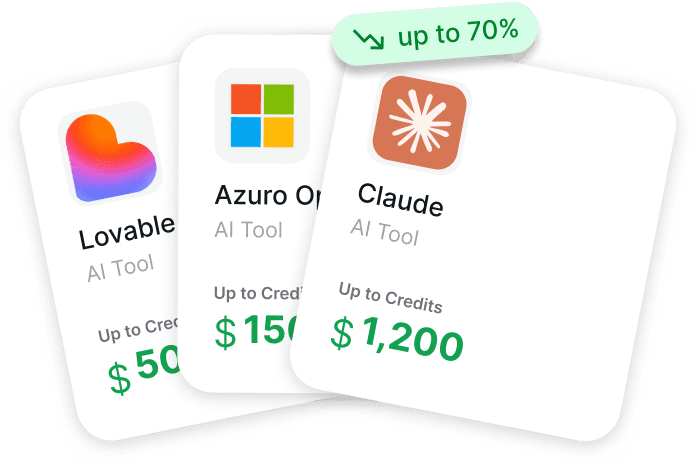
Claude Code CLI:n asentaminen on yksi vaihe. AI-työkalujen maksaminen pitkällä aikavälillä on toinen. Get AI Perks kerää startup-krediittejä ja ohjelmistotarjouksia AI- ja pilvityökaluille yhdestä paikasta. Se antaa perustajille pääsyn yli 200 etuun, mukaan lukien tarjoukset Anthropicilta, Claude'lta, OpenAI:lta, Gemini:ltä, ElevenLabsilta, Intercomilta ja muilta. Alusta näyttää myös etujen ehdot ja oppaat kunkin tarjouksen lunastamiseen.
Etsitkö Claude- tai Anthropic-krediittejä?
Tarkista Get AI Perks löytääksesi:
- AI-työkalujen krediitit ja alennukset yhdestä paikasta
- tarkista etujen ehdot ennen hakemista
- pääset oppaisiin startup-tarjousten lunastamiseen
👉 Vieraile Get AI Perksissä selataksesi saatavilla olevia Claude-, Anthropic- ja muita AI-ohjelmistotarjouksia.
Todentaminen ja alkuasetukset
Asennuksen jälkeen Claude Code vaatii todentamisen ennen kuin se voi toimia. Työkalu käyttää Anthropicin API-avaimia käyttöoikeuden vahvistamiseen.
Aloita todentamisprosessi suorittamalla:
| claude |
Kun tämä komento suoritetaan ensimmäisen kerran, Claude Code pyytää todentamista. Virallisen quickstart-oppaan mukaan tämä avaa selainikkunan Anthropic-tilille kirjautumiseen.
Kun olet kirjautunut sisään selaimen kautta, CLI saa automaattisesti todentamistokenin. Tämä token tallennetaan paikallisesti ja säilyy istuntojen välillä, joten toistuvaa todentamista ei tarvita.
Projektitason asetusten määrittäminen
Claude Code tukee konfiguraatiota useilla tasoilla virallisen asetusten dokumentaation mukaan. Yleisimmät konfiguraatiotasot ovat:
| Laajuus | Sijainti | Käyttötarkoitus |
|---|---|---|
| Käyttäjä | ~/.claude/ hakemisto | Henkilökohtaiset mieltymykset kaikissa projekteissa |
| Projekti | .claude/ arkistossa | Jaettu tiimikonfiguraatio |
| Paikallinen | .claude/settings.local.json | Konekohtaiset ylikirjoitukset |
Ensiasennuksessa käyttäjätason konfiguraatio riittää. Projektitason asetukset tulevat tärkeiksi työskenneltäessä tiimien kanssa, jotka jakavat koodausstandardeja.
Ensimmäisen Claude Code -istunnon aloittaminen
Kun asennus ja todentaminen ovat valmiit, käynnistä Claude Code suorittamalla komento ilman argumentteja:
| claude |
Tämä käynnistää interaktiivisen tilan, jossa Claude vastaa luonnollisen kielen pyyntöihin. Virallinen dokumentaatio kuvaa interaktiivisen tilan ensisijaisena tapana käyttää Claude Codea kehitystehtäviin.
Kokeile yksinkertaista testikomentoa:
| Näytä minulle tämän projektin rakenne |
Claude Code analysoi nykyisen hakemiston ja tarjoaa yleiskatsauksen koodikannan rakenteesta. Tämä osoittaa, että asennus toimii oikein ja Claude pääsee lukemaan tiedostoja.
Olennaiset komennot päivittäiseen käyttöön
Interaktiivisen tilan lisäksi Claude Code tukee useita komentosääntöjä, jotka on dokumentoitu CLI-viitteessä:
| Komentosääntö | Tarkoitus | Esimerkki |
|---|---|---|
| claude | Käynnistä interaktiivinen istunto | claude |
| claude “tehtävä” | Suorita kertaluonteinen tehtävä | claude “korjaa linttausvirheet” |
| claude -p “kysely” | Nopea kysely ilman istuntoa | claude -p “mitä tämä funktio tekee” |
Kertaluonteinen tehtävä on erityisen hyödyllinen CI/CD-putkistoissa ja automaatiokäsikirjoissa, joissa interaktiivinen istunto ei ole sopiva.

Yleisiä asennuksen vianmäärityksiä
Vaikka automaattiset asennusskriptit ovat käytössä, ongelmia ilmenee toisinaan. Virallinen vianmääritysdokumentaatio kattaa yleisimmät ongelmat.
"Komentoa ei löydy" -virheet
Jos terminaali näyttää "komentoa ei löydy: claude" asennuksen jälkeen, PATH-konfiguraatio ei ole valmistunut oikein. Lisää macOS:ssä ja Linuxissa Claude'n binääripaikka manuaalisesti shell-konfiguraatiotiedostoon.
Bash-käyttäjät, muokkaa ~/.bashrc tai ~/.bash_profile ja lisää:
| export PATH=”$HOME/.local/bin:$PATH” |
Zsh-käyttäjät (oletus modernissa macOS:ssä), muokkaa ~/.zshrc samalla rivillä. Tallenna ja lataa konfiguraatio uudelleen komennolla `source ~/.zshrc` tai avaa uusi terminaali-ikkuna.
Verkko- ja palomuuriongelmat
Yritysverkot ja rajoittavat palomuurit estävät toisinaan asennusskriptin. Vianmääritysdokumentaation mukaan, jos asennus pysähtyy tai palauttaa HTML:ää suorittamisen sijaan, verkkovierailu Anthropicin palvelimiin saattaa olla estetty.
Kiertotapa sisältää asennusskriptin lataamisen erikseen:
| curl -fsSL code.anthropic.com/install.sh -o install.sh chmod +x install.sh ./install.sh |
Tämä lähestymistapa antaa enemmän näkyvyyttä siihen, mikä epäonnistuu, jos virheitä ilmenee latauksen tai suorituksen aikana.
WSL-spesifiset ongelmat
WSL:ää käyttävät Windows-käyttäjät kohtaavat toisinaan yhteysongelmia Linux-alijärjestelmän ja Windowsin välillä. Virallinen dokumentaatio mainitsee, että palomuurisääntöjä saatetaan joutua säätämään, jotta WSL-liikenne sallitaan.
Jos Claude Code asennetaan onnistuneesti, mutta ei pysty tavoittamaan Anthropicin palvelimia todentamista varten, tarkista, että Windowsin palomuuri sallii WSL-verkon käyttöoikeuden. Vianmääritysohje sisältää erityisiä PowerShell-komentoja palomuurisääntöjen konfigurointiin.
Claude Coden päivittäminen
Claude Code saa säännöllisesti päivityksiä uusilla ominaisuuksilla ja parannuksilla. Virallisen dokumentaation mukaan päivitykset asennetaan käyttämällä samaa komentoa kuin alkuperäinen asennus.
Suorita asennusskripti uudelleen:
| curl -fsSL code.anthropic.com/install.sh | sh |
Skripti tunnistaa olemassa olevan asennuksen ja päivittää sen uusimpaan versioon. Päivitysprosessin aikana ei menetetä konfiguraatiota tai todentamista.
Tarkista nykyinen versio ennen ja jälkeen päivittämisen:
| claude –version |
Virallisen Claude Code -dokumentaation muutosten loki listaa kaikki versioiden väliset muutokset, mikä auttaa määrittämään, tuoko päivitys ominaisuuksia, jotka ovat merkityksellisiä tiettyihin työnkulkuihin.
Seuraavat vaiheet asennuksen jälkeen
Kun Claude Code on asennettu ja toimii, edistyneempien ominaisuuksien tutkiminen on mahdollista. Virallinen dokumentaatio kuvaa useita alueita, joita kannattaa tutkia:
- Taidot ja räätälöinti: Virallisen taitojen dokumentaation mukaan Claude Code tukee mukautettuja taitoja, jotka on määritelty Markdown-tiedostoissa .claude/skills/ -hakemistossa. Nämä taidot laajentavat Claude'n kykyjä projektikohtaisilla komennoilla ja työnkuluilla.
- Mallin kontekstiprotokolla (MCP): MCP-integraatio mahdollistaa Claude Coden yhteyden ulkoisiin työkaluihin ja palveluihin. Tämä tekee Claude'sta keskuksen, jolla voi päästä käsiksi tietokantoihin, API:ihin ja muihin kehitysresursseihin.
- Tiimiyhteistyö: Projektitason konfiguraatiotiedostot .claude/ -hakemistossa voidaan tallentaa versiohallintaan, jakaen Claude Code -asetuksia koko kehitystiimeille.
- Virallinen dokumentaatio tarjoaa yksityiskohtaisia ohjeita kullekin näistä alueista, rakentaen tässä käsitellyn perusasennuksen päälle.
Usein kysytyt kysymykset
Tarvitsenko maksullisen Claude-tilauksen käyttääkseni Claude Code CLI:tä?
Claude Code vaatii Claude-tilin Anthropicilta, mutta tarvittava tilaustaso riippuu käytöstä. Virallisen dokumentaation mukaan todentaminen on välttämätöntä, mutta hinnoittelutiedot tulisi varmistaa Anthropicin viralliselta verkkosivustolta, sillä suunnitelmat muuttuvat ajan myötä.
Voinko asentaa Claude Coden ilman järjestelmänvalvojan oikeuksia?
macOS:ssä ja Linuxissa Claude Code asennetaan oletusarvoisesti käyttäjän kotihakemistoon eikä vaadi järjestelmänvalvojan oikeuksia. Windows-käyttäjät saattavat tarvita järjestelmänvalvojan oikeuksia PowerShell-asennusmenetelmälle, vaikka WSL-asennukset eivät vaadi admin-oikeuksia.
Toimiiko Claude Code offline-tilassa?
Ei. Claude Code on tekoälypohjainen työkalu, joka kommunikoi Anthropicin palvelimien kanssa pyyntöjen käsittelemiseksi. Virallisen dokumentaation mukaan aktiivinen internet-yhteys vaaditaan, jotta Claude voi analysoida koodia ja tuottaa vastauksia.
Miten Claude Coden poistaa asennus?
Virallinen edistynyt asennusdokumentaatio selittää, että poisto sisältää binäärin ja konfiguraatiotiedostojen poistamisen. macOS:ssä ja Linuxissa poista ~/.claude-hakemisto ja poista PATH-muutos shell-konfiguraatiotiedostoista. Windows-käyttäjien tulee poistaa asennushakemisto ja tyhjentää PATH-ympäristömuuttuja.
Voiko Claude Code käyttää koko tiedostojärjestelmääni?
Oletusarvoisesti Claude Code toimii nykyisen työhakemiston ja sen ala-hakemistojen sisällä. Virallisen käyttöoikeusdokumentaation mukaan käyttöä voidaan rajoittaa entisestään käyttämällä hiekkalaatikkoympäristöjä konfiguraatiotiedostoissa. Claude pyytää aina vahvistuksen ennen mahdollisesti tuhoisien toimenpiteiden suorittamista.
Mikä ero on Claude Code CLI:n ja Claude Desktopin välillä?
Claude Code CLI toimii terminaalissa ja keskittyy kehitystyönkulkuihin suoralla tiedostojärjestelmän käytöllä ja komentosuorituksella. Claude Desktop on itsenäinen sovellus graafisella käyttöliittymällä. Molemmat työkalut palvelevat eri käyttötarkoituksia, CLI on optimoitu kehittäjille, jotka suosivat terminaalipohjaisia työnkulkuja.
Kuinka usein Claude Codea tulisi päivittää?
Päivitykset voidaan asentaa milloin tahansa. Virallinen muutosten loki dokumentoi uusia ominaisuuksia ja virheenkorjauksia. Tiimeille päivitysten koordinointi varmistaa, että kaikki käyttävät yhteensopivia versioita, vaikka Claude Code säilyttääkin takaisin päin yhteensopivuuden konfiguraatiotiedostojen kanssa versioiden välillä.
Johtopäätös
Claude Code CLI:n asentaminen vie vain muutaman minuutin käyttöjärjestelmästä riippumatta. Automaattiset asennusskriptit hoitavat konfiguraation, PATH-asetukset ja binäärin sijoittamisen ilman manuaalista väliintuloa.
Asennuksen ja todentamisen jälkeen Claude Code on tehokas AI-koodausavustaja, johon pääsee käsiksi mistä tahansa terminaalista. Luonnollisen kielen komennoilla kehittäjät voivat kirjoittaa koodia, korjata bugeja ja automatisoida tehtäviä poistumatta komentoriviltä.
Oletko valmis kokemaan AI-avusteisen kehityksen? Suorita asennuskomento käyttöjärjestelmällesi ja aloita ensimmäinen Claude Code -istuntosi tänään. Virallinen dokumentaatio osoitteessa code.claude.com tarjoaa kattavat oppaat edistyneisiin ominaisuuksiin, kun perusasennus on valmis.